Sample Packs
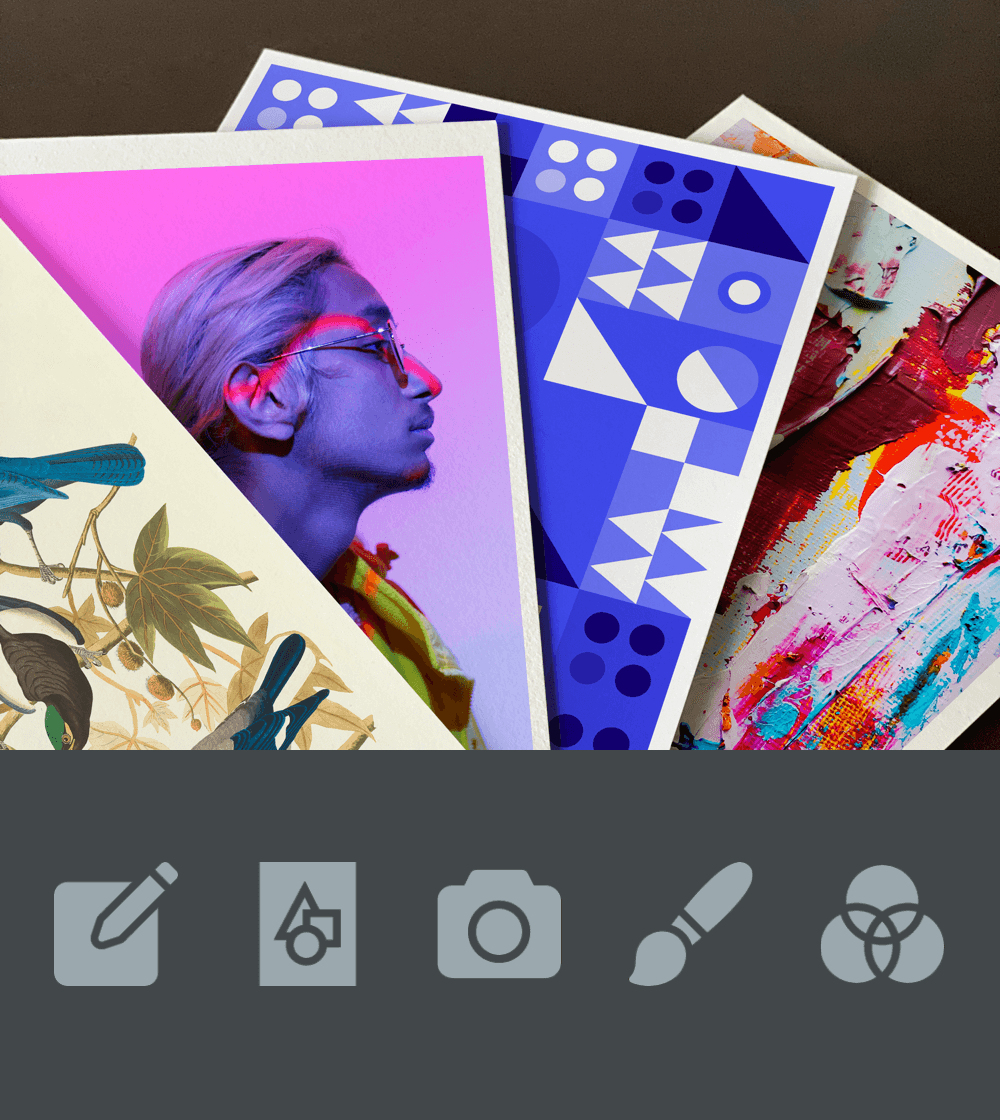
We offer five sample packs with different types of images printed on our Hahnemühle papers.
Contact usBefore sending to print

Making sure that your file is correctly prepared is the key for a great quality, high-definition print. Follow our guidelines to get the best out of your print.
It can be a little daunting at first, so please feel completely free to contact us. You can ask us any questions you might have about preparing your files for printing.

Unique
We have developed a special technology to immediately recognise whether the digital file is ready for print – amongst other things, it checks your file’s PPI.
It will enable us to inform you in case your file still needs work or if it was sent to us with insufficient resolution. This way nothing leaves our printers unless it can meet museum quality.
Every order passes through this approval before it is printed.
Standard Giclée
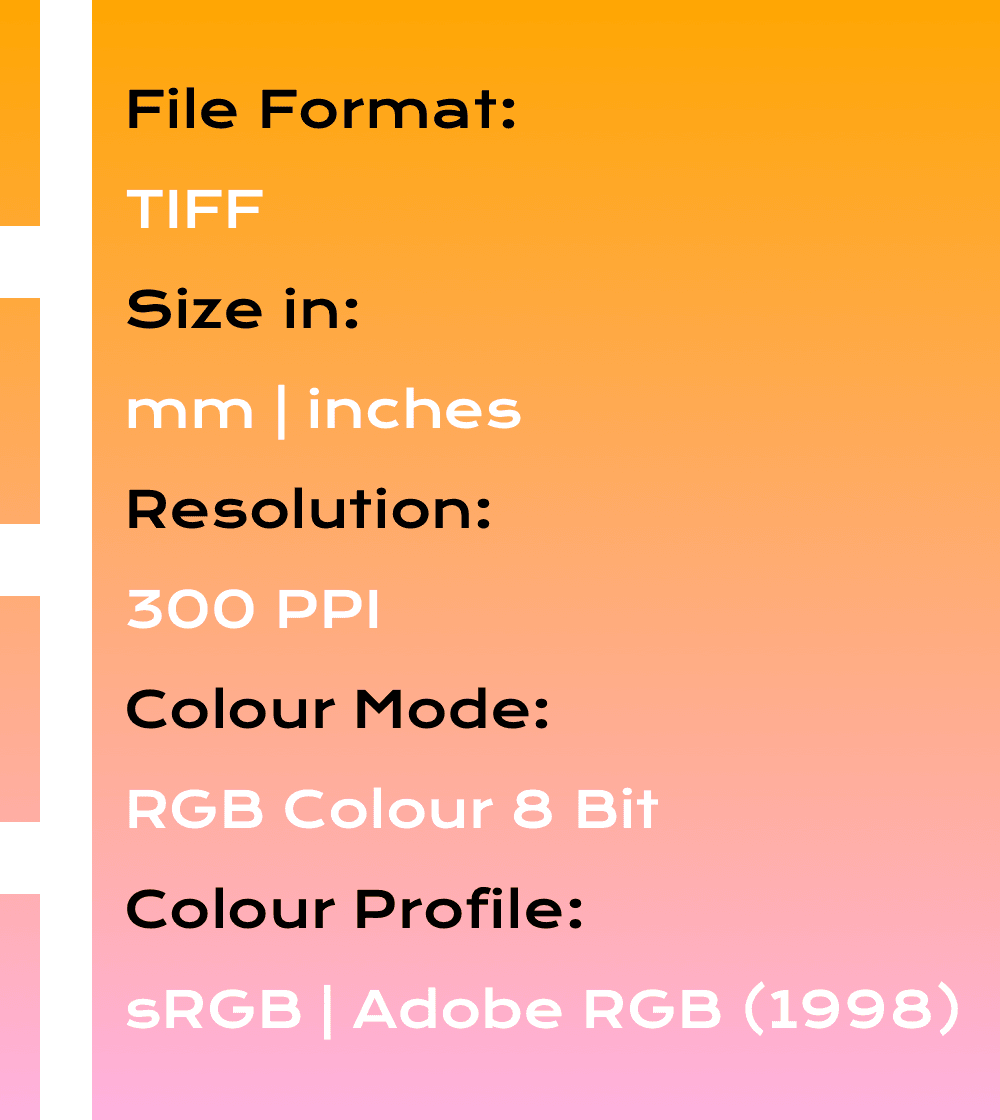
To get the best printing results we need to receive a flattened TIFF file with 300 PPI resolution, RGB Color at 8 bit in your desired size in sRGB or Adobe RGB (1998) colour profile.
When you start creating a digital image in raster (e.g. in Photoshop) it is wise to think about the maximum size (inches or mm) that you would like to print in the future and set your document to 300 PPI.
Resolution under 300 PPI
Ideally your image was initially created at 300 PPI with your desired width and height in inches or millimetres.
What if your file has a resolution lower than 300 PPI? For example you created your digital file at a lower resolution or you took a photograph at 72 PPI and you would like to still print it out.
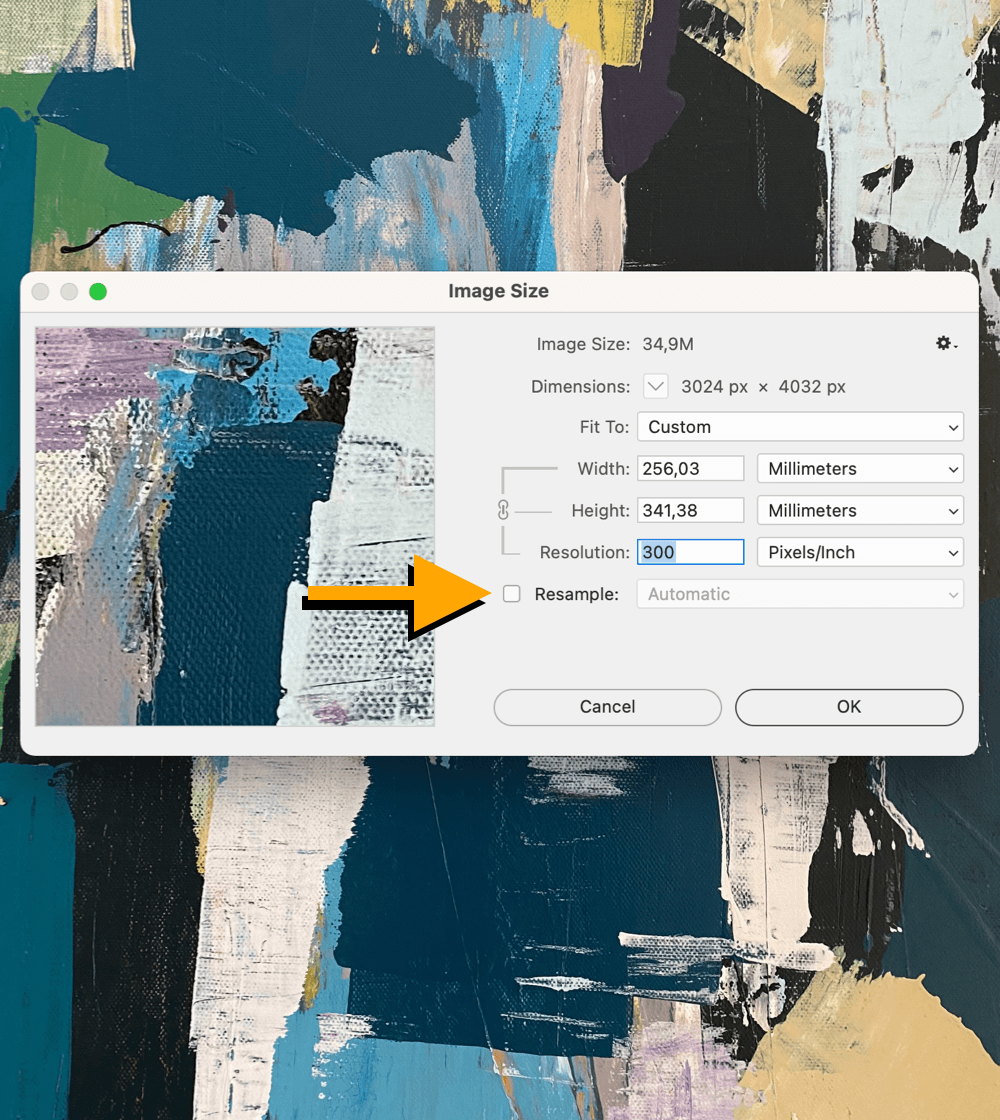
To find out the maximum print size, in Photoshop you can click Image ➔ Image Size, untick Resample and input 300 PPI in the Resolution box. Photoshop will then show you the maximum printable height and width in your desired unit (inches or mm) at 300 PPI.
Check your file
At 300 PPI: 420 × 594 mm (16.5″ × 23.4″)
Warning
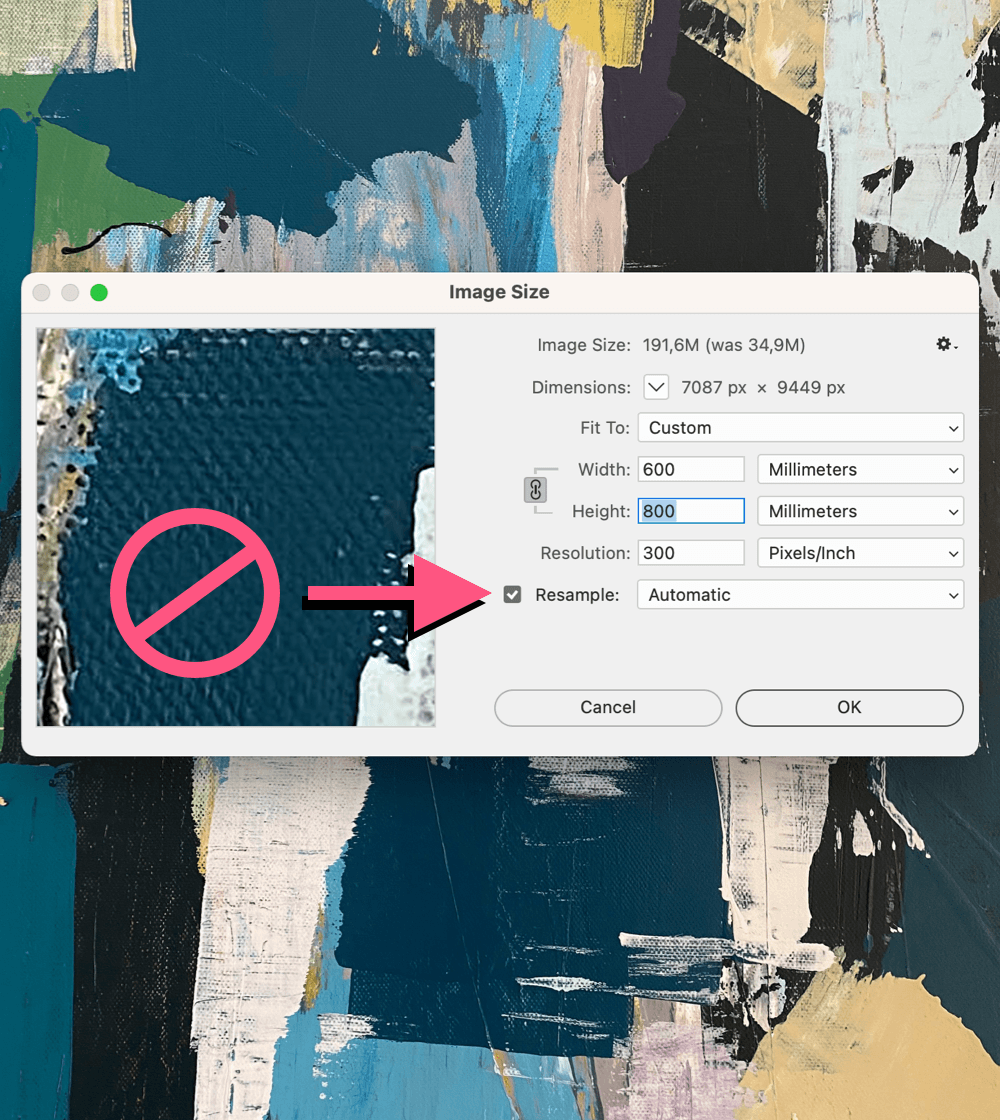
If you increase the resolution in Photoshop by clicking Image ➔ Image Size with Resample ticked, Photoshop will artificially create more pixels per inch without improving the quality of the image.
This forced resolution change will result in a low quality image that is not suitable for printing.
Scalable
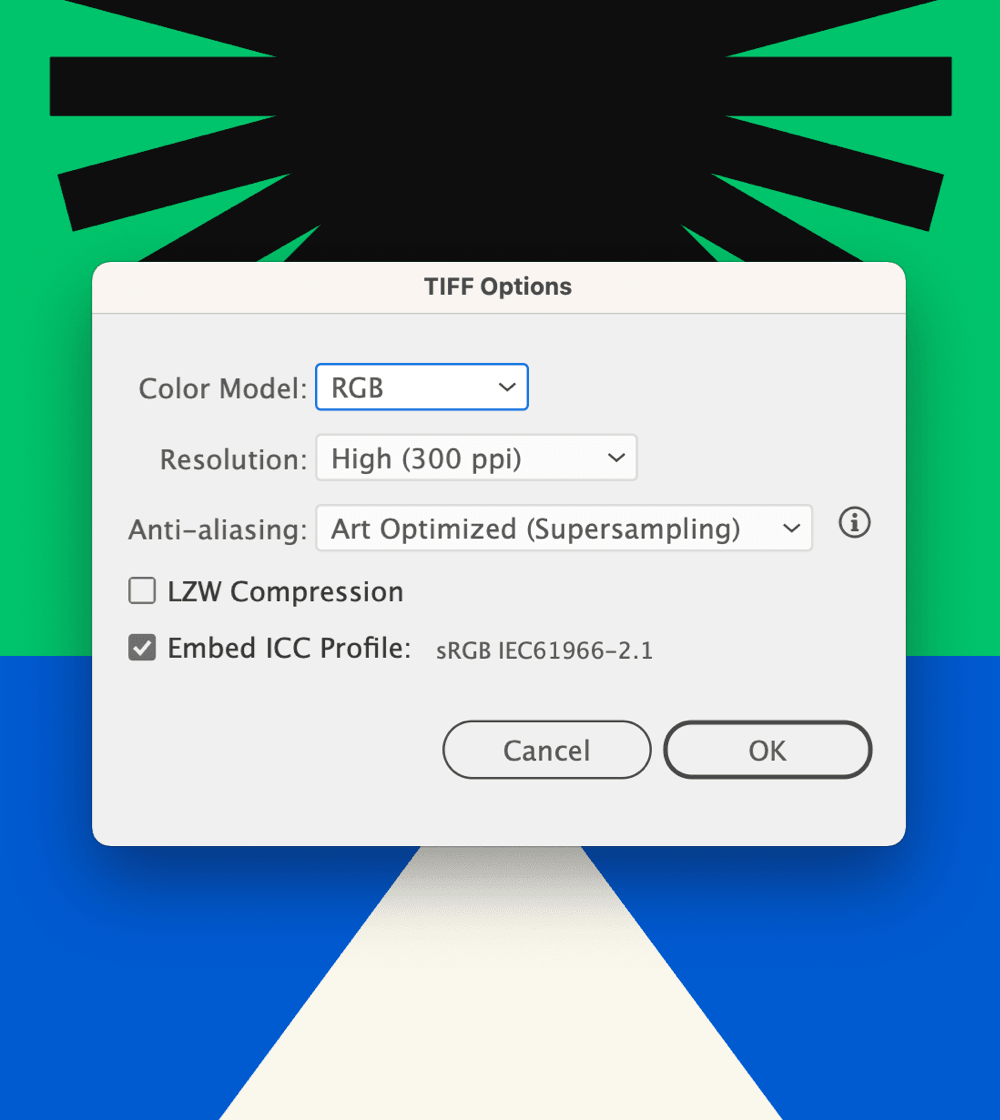
A vector-based file (e.g. created in Adobe Illustrator) is scalable to any size without quality loss. To print it out, you will need to export your vector file as a raster TIFF file in your desired unit (inches or mm) at 300 PPI.
In order to create a correct TIFF file for printing, please follow our export instructions in the Vector File Export section below.
10mm
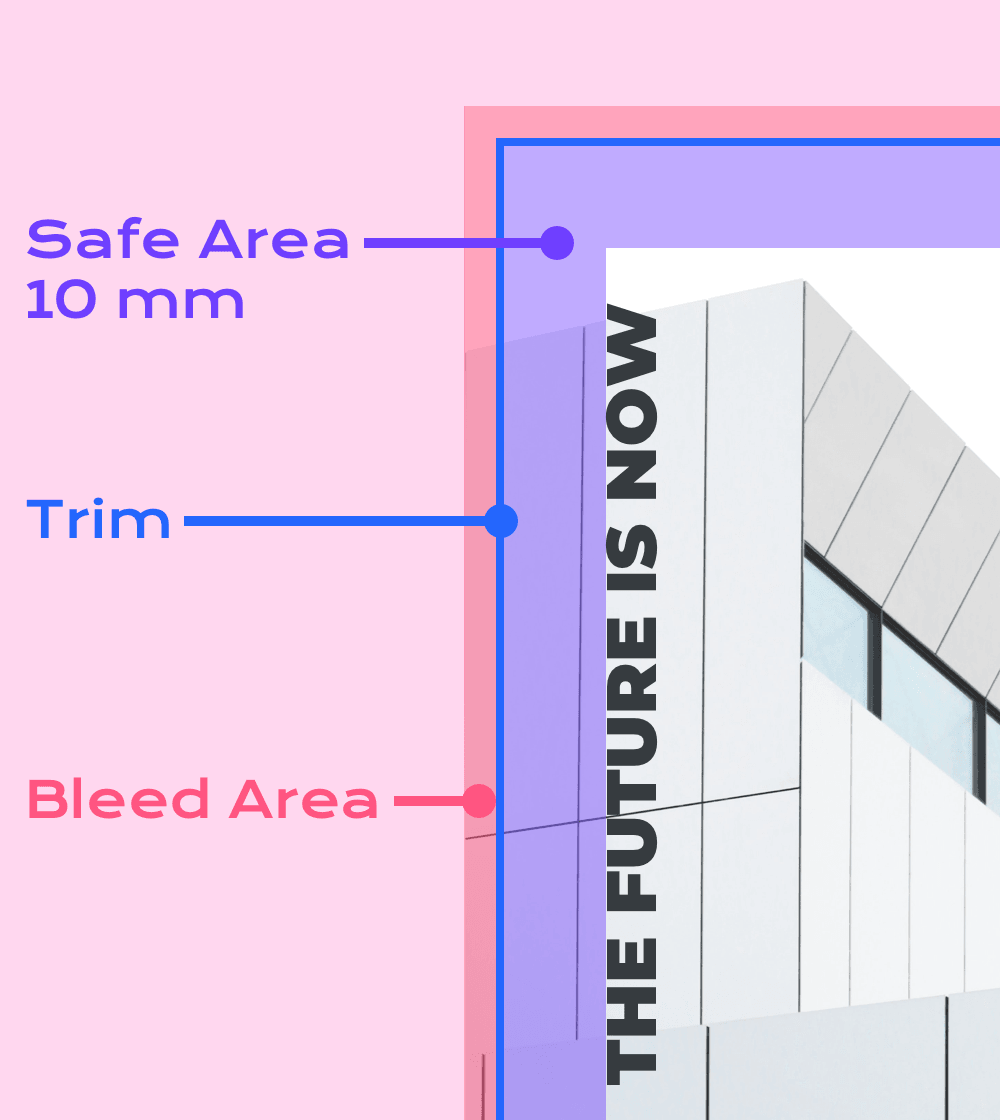
Our professional printers produce borderless prints – this is why we need to receive your file in the exact size that you would like it to be printed in. This means that no added bleed area is required.
It is important to keep all the essential elements of your image (e.g. logos or texts) inside your printed image without them being cut off in the printing process or overlapped with a frame.
To do so, please place all the important elements of your image 10mm away from the edges on all sides of your image.
Optional
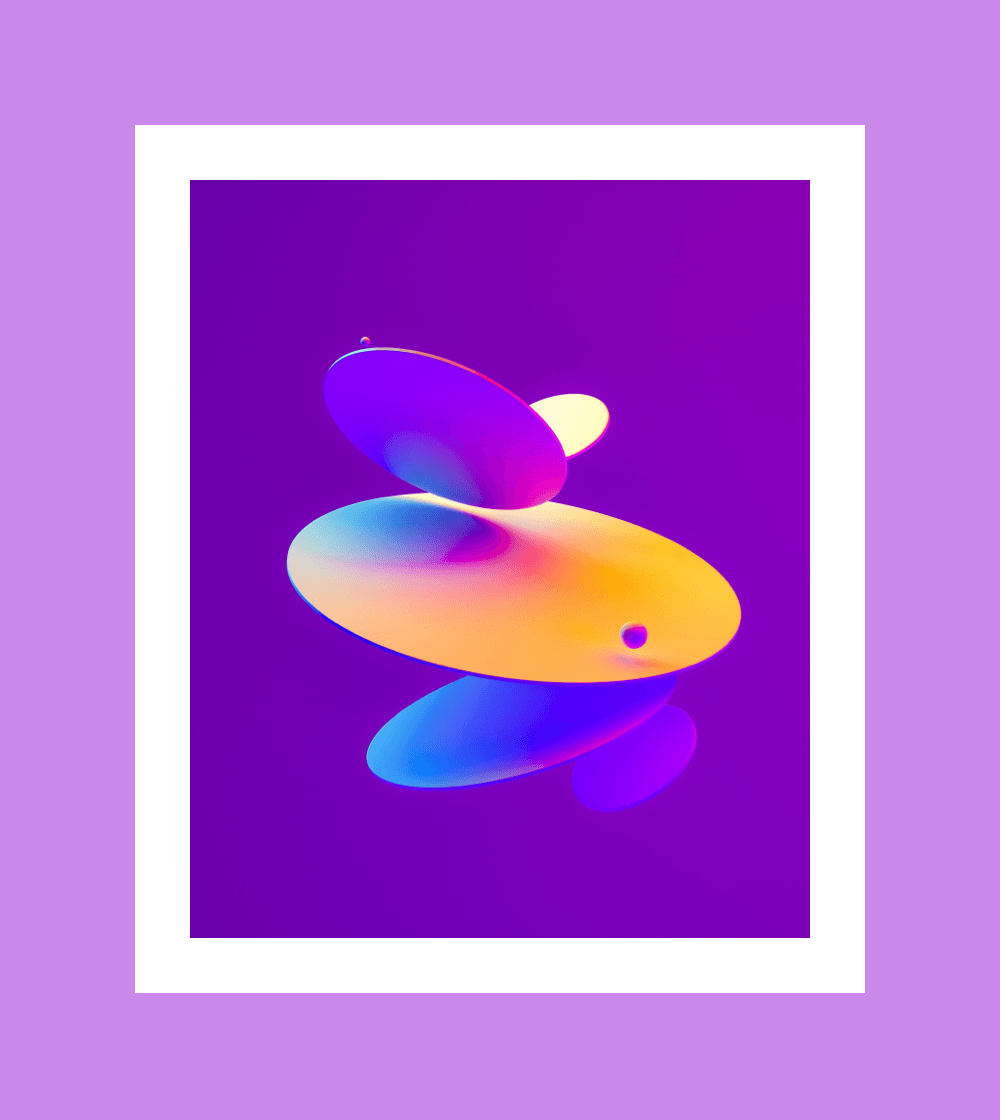
If you would like your image to be printed out with borders of your desired thickness, please include them in your file.
It is important to place the borders inside your chosen print area. If you were to add the borders on the outside of your image, it would change the height and width of your file.
Merge layers
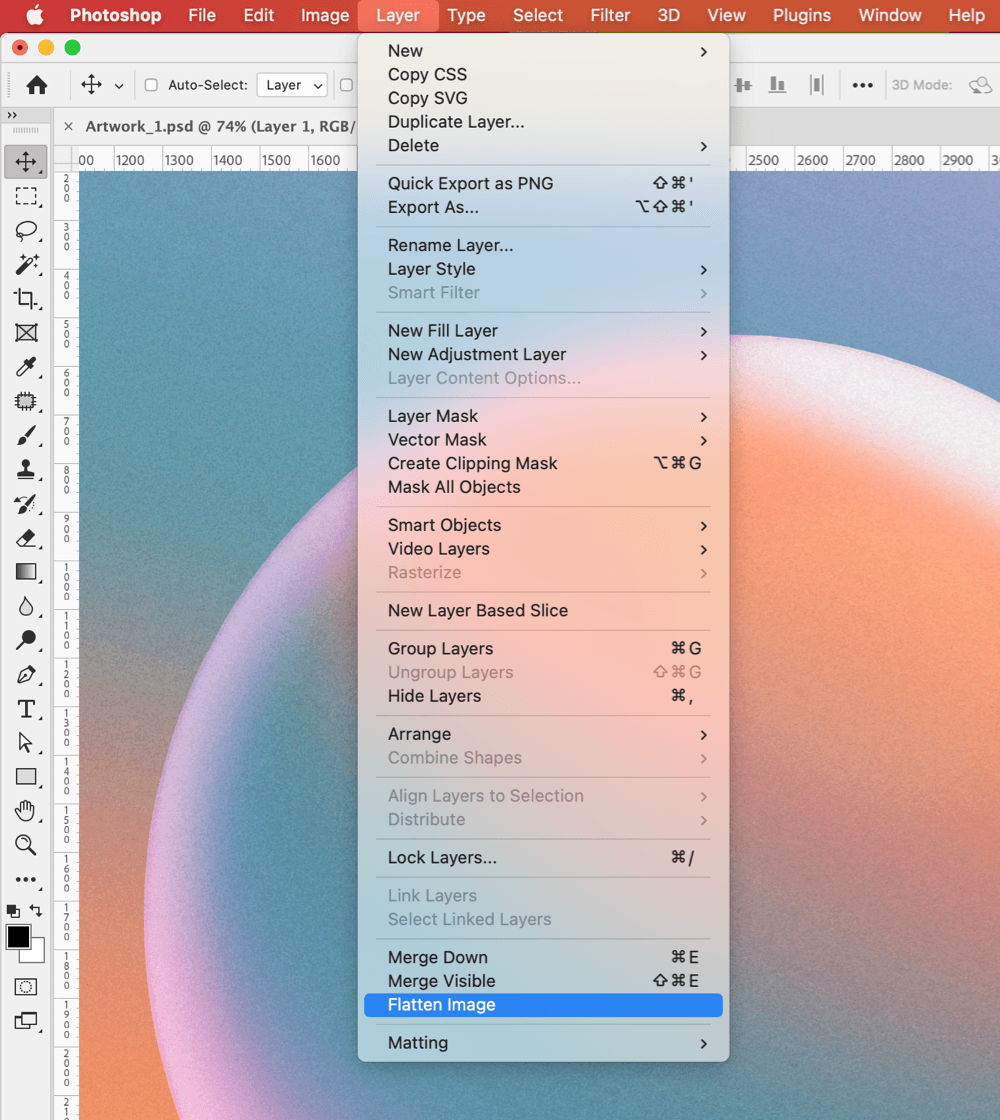
As you get closer to exporting your file it is important to remember to flatten your image by merging all the layers. To do so, in Photoshop click Layer ➔ Flatten your image.
Please make sure that you have deleted all paths, masks and alpha channels.
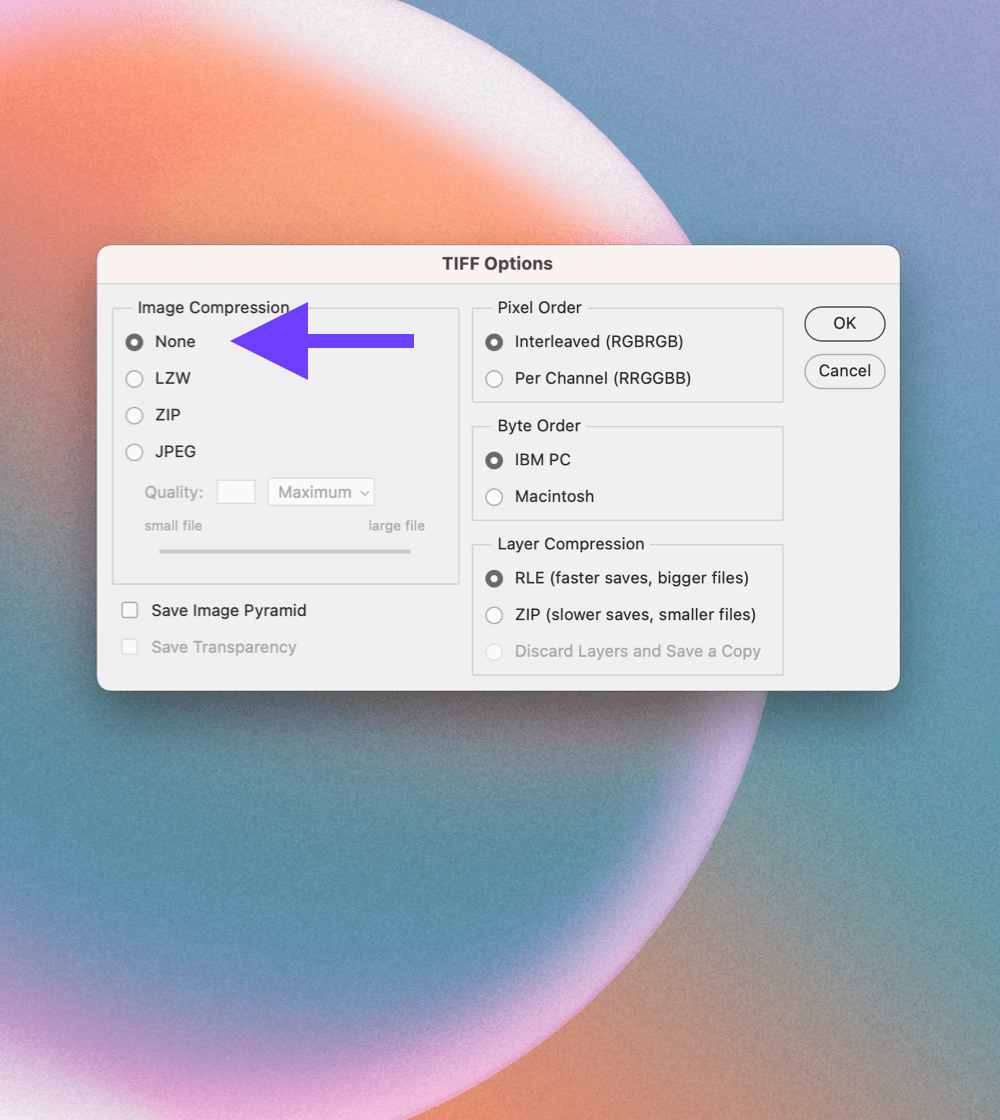
Photoshop
In Photoshop, please set your Color Mode to RGB Color at 8 Bits/Channel (Image ➔ Mode) and set your Color Profile to sRGB or Adobe RGB (1998) (Edit ➔ Color Settings).
Save your image as a TIFF file with no compression (File ➔ Save As).
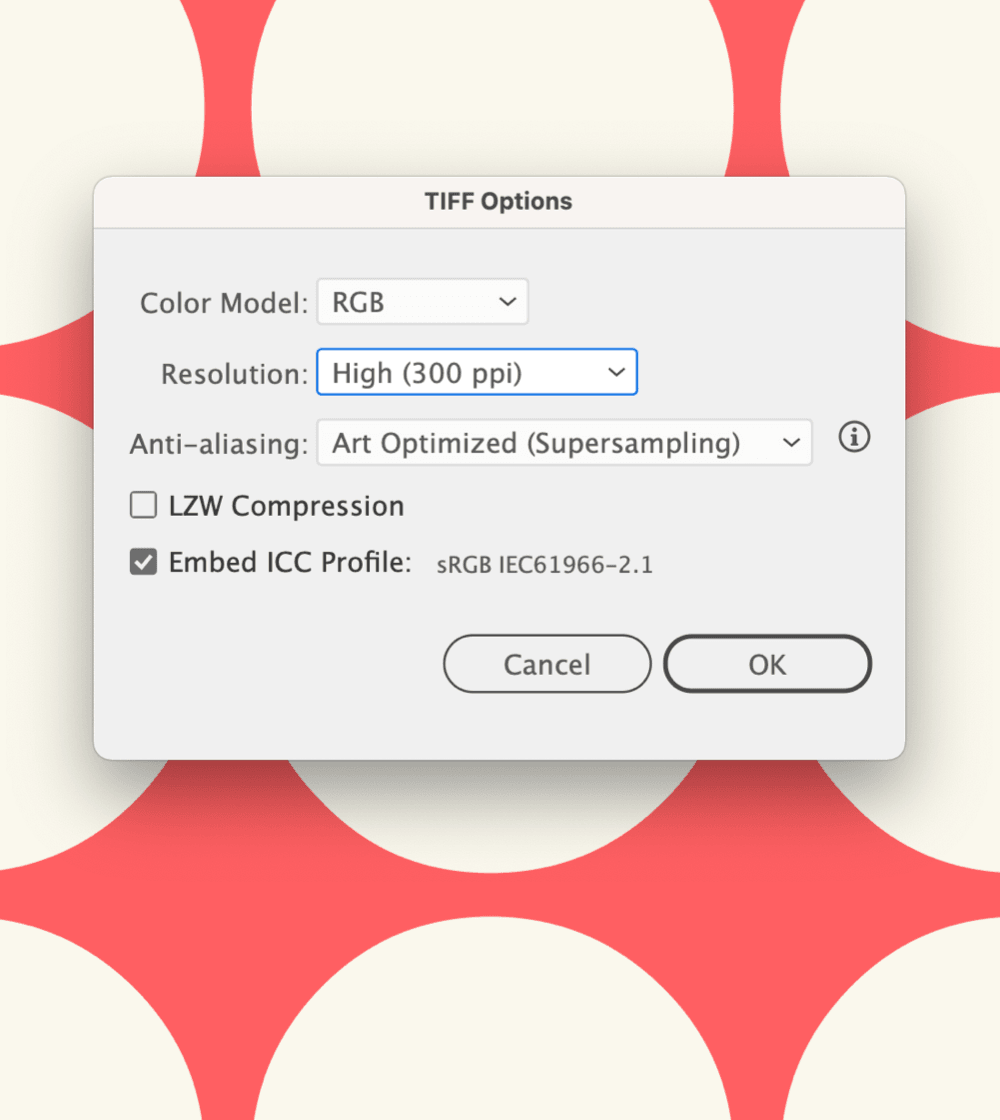
Illustrator
If your file is vector-based created in Illustrator, please make sure that your vector file is in the Color Mode RGB Color (File ➔ Document Color Mode) and your Color Profile is set to sRGB or Adobe RGB (1998) (Edit ➔ Color Settings).
Then export it as a raster TIFF file in 300 PPI. You can do this by clicking File ➔ Export ➔ Export As.
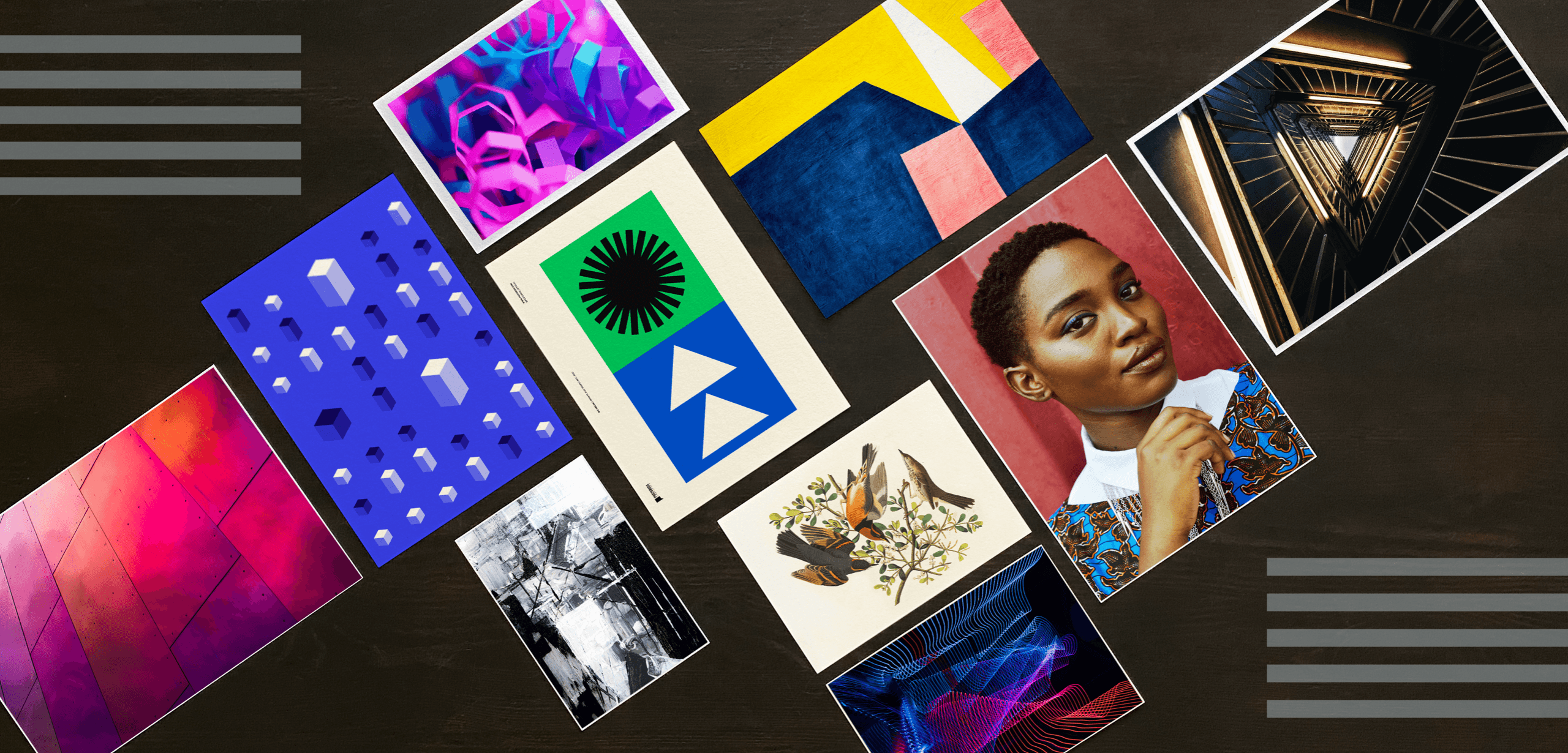
Art by Ryan Stone, MagicPattern, Steve Johnson, Sharon McCutcheon, Posteress, John James Audubon, Zak, Photo Boards, Prince Akachi, Akira Hojo
We offer five sample packs with different types of images printed on our Hahnemühle papers.
Contact us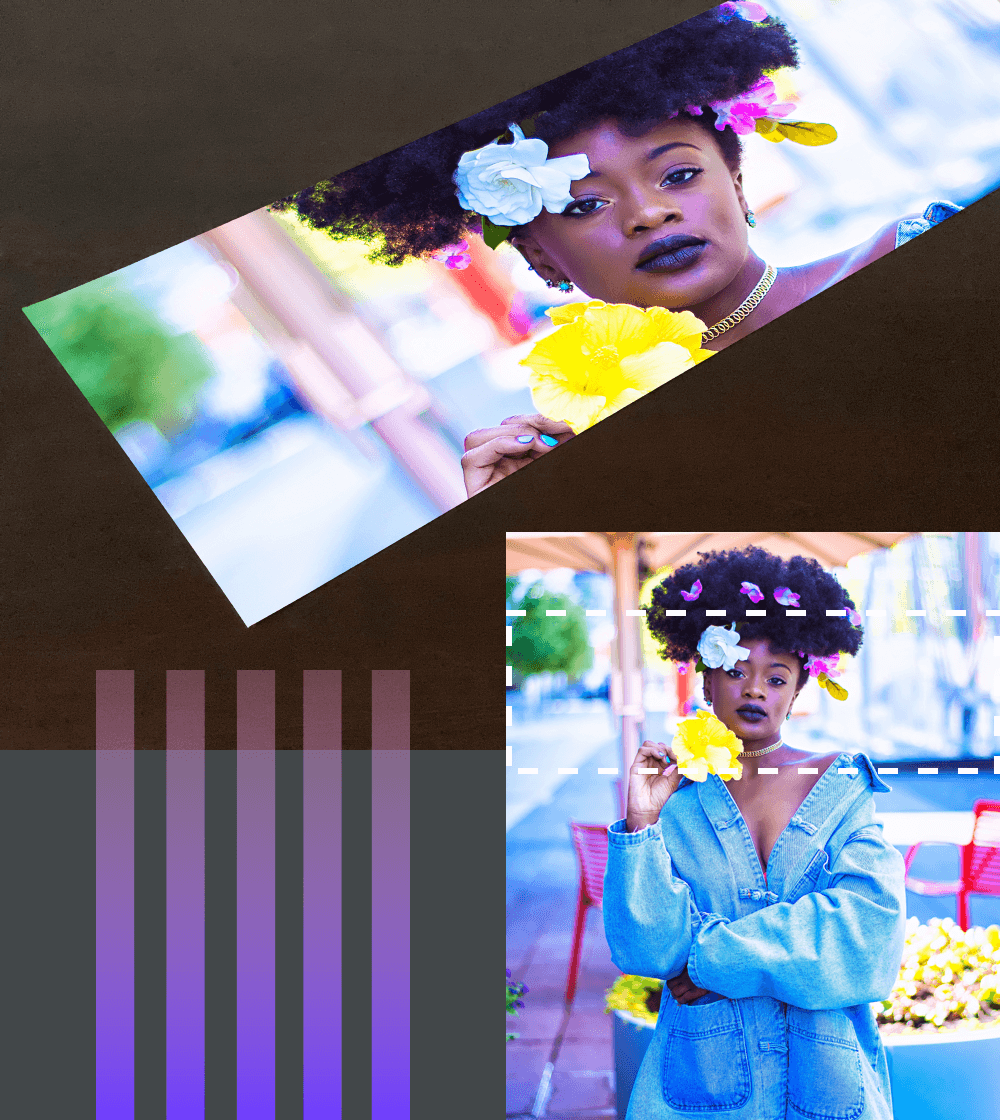
Ensure that your large format print meets your expectations regarding colour representation, sharpness and quality.
Contact us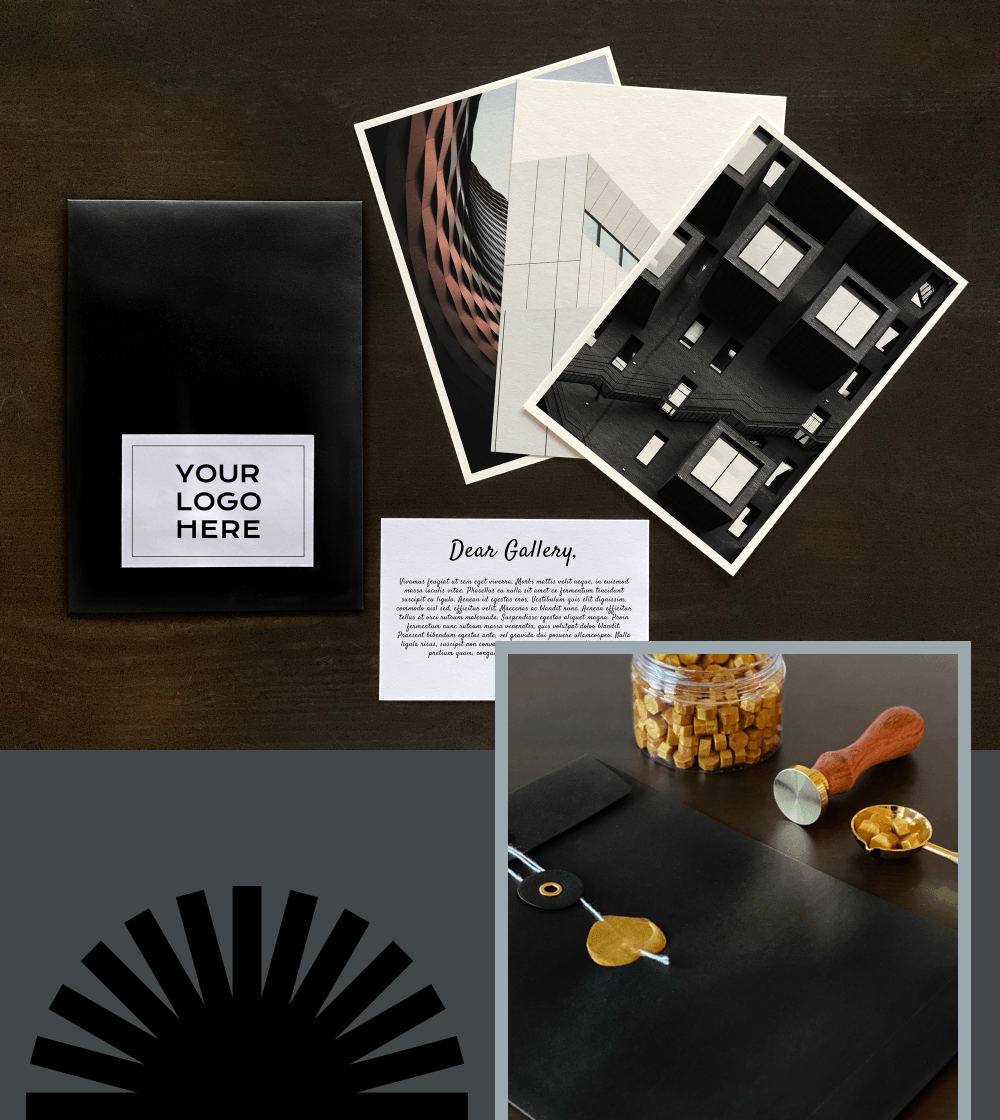
Give your work the presentation it deserves. In a stylish black envelope branded with your logo for maximum effect.
Contact us